
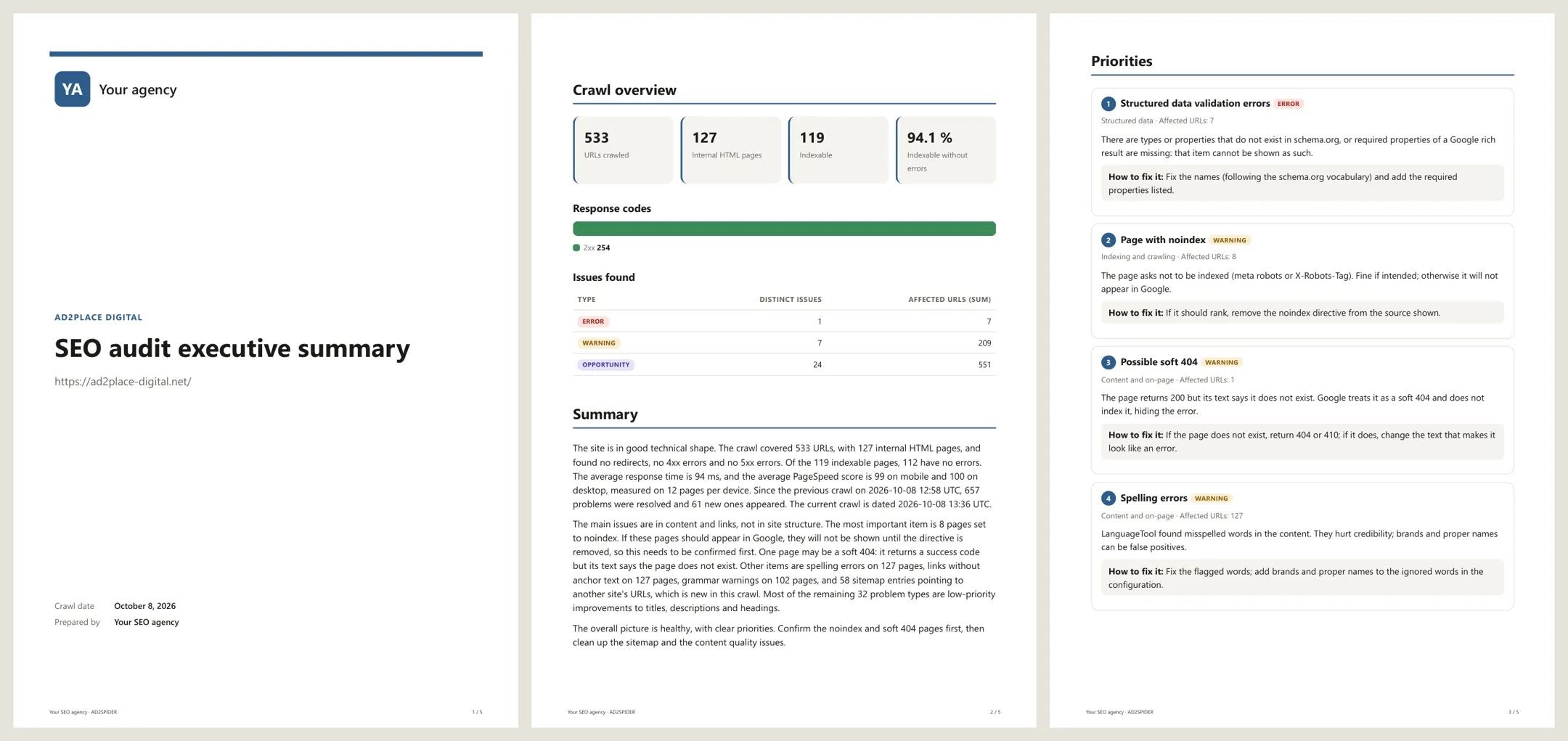
A client report turns a crawl into a document ready to send: with your logo and colors, in English or Spanish, as a PDF or HTML file. The figures, tables and charts always come from the crawl; you choose the report type and, if you like, add a summary and an action plan, written by you or drafted by AI.
Create a report
Go to Export and use the Client report card:

- Choose the report type (see the table below).
- Enter the client name shown on the cover (if empty, the project name is used).
- Choose the report language. It is independent of the app language: you can work in Spanish and deliver the report in English.
- Click Preview to check it, and Save PDF… or Save HTML… to save it.
| Type | For whom | What it includes |
|---|---|---|
| Executive | The owner or manager | Key figures, the top 5 priorities (errors and warnings by severity and reach) and the progress since the previous crawl. |
| Full technical | The developer | Every issue by section, with why it matters, how to fix it and example URLs (choose how many, 0 to 50), and how the crawl was done. |
| Content and on-page | The writer | Titles, metas, headings, content, images and structured data, plus pages competing with each other according to the semantic analysis. |
| Performance | The developer | Average mobile and desktop PageSpeed, the pages with the lowest score, the average response time and the performance issues. |
| Progress | The client, every month | What has been fixed, what has appeared and what remains compared with the previous completed crawl (or the one you choose), and new or removed URLs. |
| Migration | The agency and the developer | The old site against the new one: lost URLs, URLs that now fail or redirect, URLs that are no longer indexable, and canonical and title changes. |
In the technical, content and performance reports you can also include info notices.
Every report ends with what could not be measured, if anything (for example, pages PageSpeed didn’t measure because of Google’s quota; see warnings), so the client doesn’t mistake an empty column for “no issues”.
Your brand
Click Your brand on the card to set up, once for every report:

- Logo: PNG, JPEG, WebP or SVG up to 1 MB. It is embedded in the report, which depends on nothing external.
- Agency or consultant: shown on the cover (“Prepared by”) and in the footer.
- Contact: one line for the footer (website, email, phone).
- Main color: used for headings, lines and highlighted figures.
- White label: removes “Report generated with AD2SPIDER” from the footer. It’s included in the license; it isn’t available during the free trial.
AI-written texts
Expand Report texts to add a summary at the start and an action plan at the end. You can write them yourself or ask the AI for a draft:

- Choose the brief: executive summary and prioritized plan, explained for a non-technical reader, quick wins, tasks for the developer or monthly progress report. Each report type suggests the one that suits it best.
- Choose the provider and model. The key you saved in Configuration › AI is used; with Ollama, the model you have downloaded.
- Optionally add your own instructions (for example, “it’s a fashion online store; focus on category indexing”).
- Click Write with AI. Before you do, you’ll see roughly how many tokens it will cost under the button; with a small model, around one cent. Free with Ollama.
The draft appears in the Summary and Action plan fields: review and edit it before saving the report.
What is sent and what isn’t:
- The AI receives an audit summary: the figures, the main issues with their explanation, performance, progress and what couldn’t be measured. Never the content of the pages.
- It is instructed to use only that data, to copy numbers exactly and to ignore any instruction that appears inside it.
- The AI only writes those two texts. The report’s figures, tables and charts always come from the app: the report cannot make up numbers.
- The report states that those texts were written by AI, with the model used: a note below each one and the PDF and HTML metadata. If you rewrite them yourself, you can remove the mark in Report texts.
Migration report
For a change of website, domain or structure, crawl the old site before the migration and the new site afterwards, in the same project. With the new crawl selected, choose the Migration type:
- In Crawl of the old site, choose the earlier crawl (by default, the previous completed one).
- If the domain or paths change, add mapping rules that turn old URLs into new ones, as in Compare: for example
^https://www.old.com/(.*)→https://www.new.com/$1.
The report lists lost URLs (with the reason: they no longer exist, they are outside the crawl scope, or the new crawl stopped early and it cannot be stated), URLs that now fail (4xx, 5xx), URLs that now redirect, URLs that are no longer indexable and changed canonicals and titles. A URL the new crawl never requested (for example, because of a URL limit) is not counted as an error: only what was checked is stated.
To review a migration’s redirects in detail, crawl the old site’s URLs on the new site in list mode.
Automatic reports
A scheduled crawl can generate the report by itself when it finishes, in the same folder as the other results:
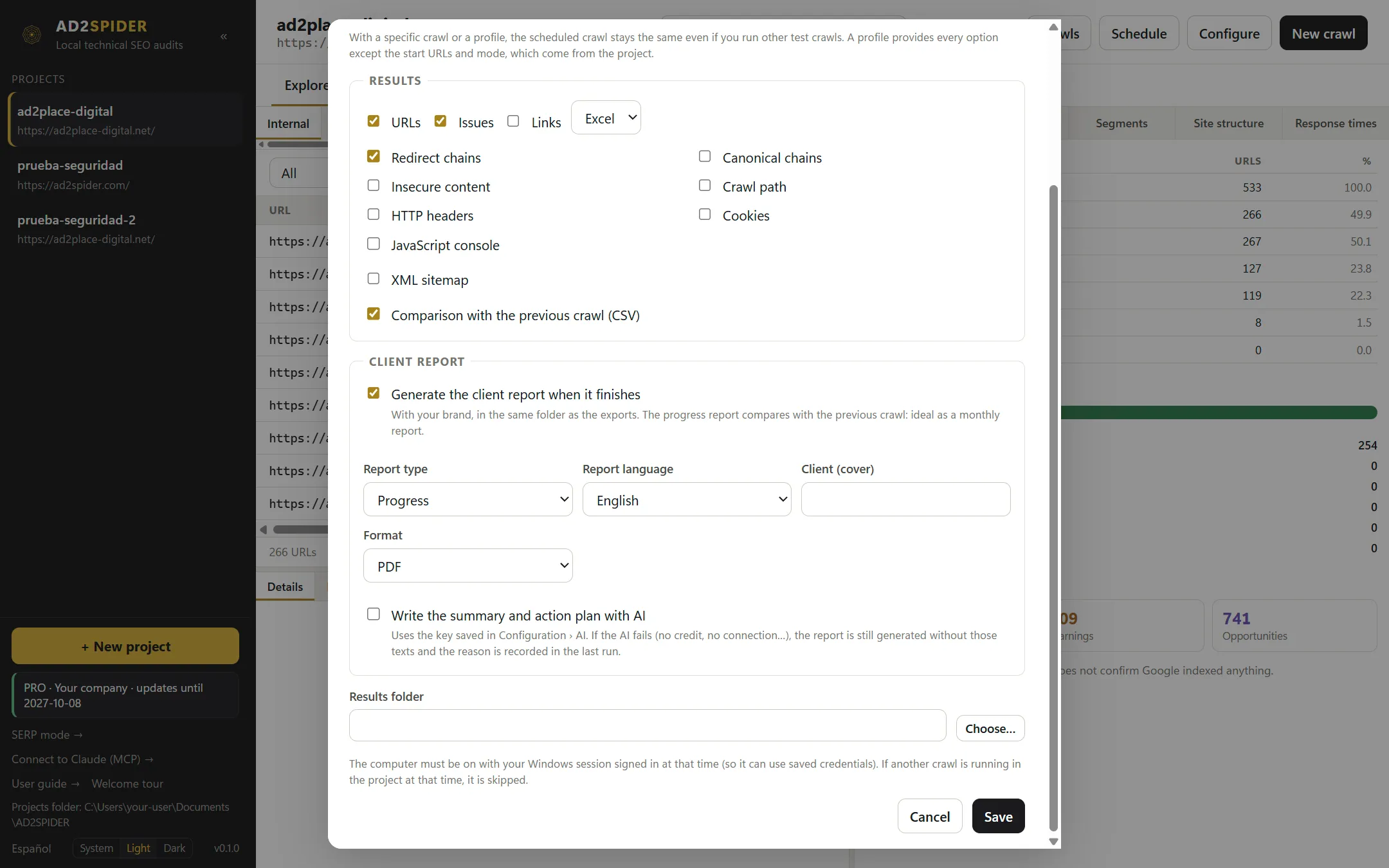
- In the schedule, tick Generate the client report when it finishes.
- Choose the type (the progress report is ideal as a monthly report), language, client and format (PDF or HTML).
- If you want the summary and action plan, tick Write the summary and action plan with AI and choose the brief, provider and model.
If the AI fails (no credit, no connection…), the report is still generated without those texts, and the reason is recorded in the schedule’s last run.
Email delivery to the client
The scheduled report can land in the client’s inbox on its own. It’s sent from your agency’s email, with your name as the sender: AD2SPIDER has no sending server and your clients’ reports don’t go through any third party.
- In the schedule, below the report, tick Email the report to the client.
- Enter the recipients in To (separate several with commas).
- If you like, change the subject and message. You can use
{client},{project},{date},{report}and{agency}. If you leave them empty, a sample text in the report language is used. - The first time, click Outgoing email… and set up the account that sends it.
| Field | What to enter |
|---|---|
| Provider | Fills in the server, port and security for Gmail / Google Workspace, Outlook / Microsoft 365, Hostinger, IONOS or Zoho. For another provider, copy them from its help pages (“SMTP settings”). |
| Username and Password | Usually the full address and its password. The password is stored encrypted in the system key store (Windows Credential Manager or macOS Keychain). |
| Sender name and address | What the client sees in “From:”. |
| Reply to | Optional: if replies should go to another address. |
- Gmail requires an app password: turn on 2-Step Verification in your Google account and create one under “App passwords”. Your normal password won’t work.
- Microsoft is retiring password-based SMTP sending in Outlook and Microsoft 365. If the test fails, use your hosting’s email or Gmail.
- The connection is always encrypted (SSL/TLS or STARTTLS): AD2SPIDER never sends the password unencrypted.
Click Send test email before saving to check that everything works. If a scheduled send fails (changed password, full mailbox…), the report still stays in the results folder and the run shows as an error, with the reason. The attached report can be up to 15 MB.
From the command line and from Claude
The command line generates the same reports, with the brand, license and keys saved in the app:
ad2spider report <project> --type executive --output report.pdf
ad2spider report <project> --type progress --lang en --client "Client" --output report.pdf --ai anthropic
ad2spider report <project> --type migration --base <old-crawl-id> --map "^https://old.com/(.*)=>https://new.com/$1" --output migration.pdf| Option | What it does |
|---|---|
--type |
executive, technical, content, performance, progress or migration (the Spanish names work too). |
--output |
A .pdf or .html file. |
--crawl, --base |
The crawl to report on (by default, the latest completed one) and the one to compare with. |
--lang, --client, --examples |
Language, client on the cover and example URLs per issue. |
--map |
Mapping rule for the migration (<regex>=><url>), repeatable. |
--ai <provider>[:<model>], --ai-brief, --ai-notes |
AI-written summary and action plan: provider and model, brief (executive, non_technical, quick_wins, developer, monthly) and your own instructions. |
With the connection to Claude (MCP), you can ask Claude to write a report in the conversation: the client_report_data tool gives it the same data the app’s AI receives. The connection is read-only: the PDF with your brand is generated in the app or from the command line.