
Projects
Each project stores the configuration and all the crawls of one website. Projects appear in the sidebar with their name and URL; a green dot means a crawl is running. Click one to open it.
You can collapse the sidebar with « to leave more room for the data: it becomes a narrow strip with each project’s initials and shortcuts (+ new project, ? welcome tour, Aa SERP mode, AI connection to Claude). » expands it again. You can also drag its edge to change its width.
Each project is a folder inside Documents\AD2SPIDER (the exact path appears at the bottom of the sidebar, under Projects folder). You can back up that folder or move it to another computer.
Deleting and renaming projects from within the app is on the roadmap.
Create a project
+ New project opens the creation dialog.

| Field | What it does |
|---|---|
| Mode | Spider (follows links) goes through the site starting from the start URL. URL list checks only the URLs you provide. |
| Start URL | Where the spider starts, usually the home page. |
| URLs (one per line) | In list mode: paste them, use Load file… (txt, csv, xlsx, xls, ods, xml or compressed sitemap) or Download sitemap… from its address; sitemap indexes are followed automatically. Up to 500,000 URLs. |
| Name | How it will appear in the sidebar. Empty = the domain. |
| Limits and speed | Maximum URLs (100,000), concurrent requests (8) and minimum pause per server (250 ms). |
| Options | Respect robots.txt, include subdomains, check external links, crawl srcset variants and intranet mode. |
Advanced configuration… opens the full configuration before you create the project. If you have saved a configuration with Set as default, new projects start from it.
If you choose something risky (no URL limit, more than 16 concurrent requests, no pause, not respecting robots.txt or intranet mode), the Before you start box appears with the consequences. It doesn’t stop you from creating the project: it’s a reminder.
Finish with Create and crawl or, if you want to review the configuration first, with Create project.
Crawl
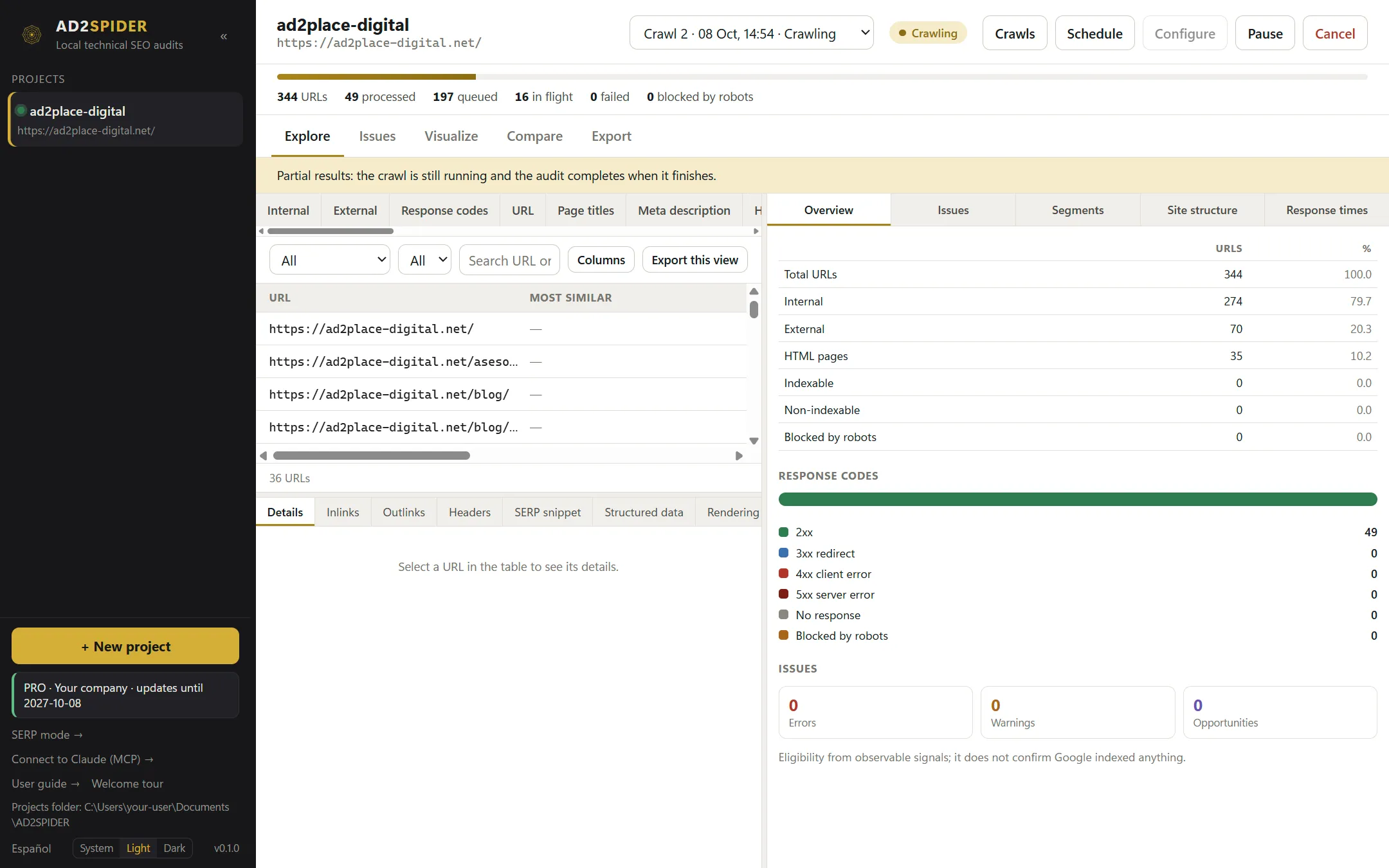
The project header has the crawl selector, the status and the action buttons.
| Status | Meaning |
|---|---|
| Not started | A crawl that is ready (for example, after changing the configuration) but hasn’t been launched yet. Click Crawl. |
| Crawling | Running. The bar shows URLs, processed, queued, in progress, failed and blocked by robots. |
| Pausing… / Paused | Stopping in an orderly way / stopped. Resume continues it. |
| Auditing… | Final phase: semantic analysis, AI and PageSpeed if they are turned on, and calculation of the issues that depend on the whole site. The bar shows the progress of each phase. |
| Completed | Finished. New crawl starts another one with the same configuration. |
| Canceled / Failed | Ended early; you can still look at its data. |
- Explore during the crawl: every view works with the partial data and refreshes on its own.
- Closing the app halfway loses nothing: when you come back, the crawl shows Resume.
- Low disk space: the crawl pauses on its own before the disk fills up. Free up space and click Resume.
- One crawl at a time per project: the app, scheduled crawls and the command line all respect each other.
Crawl history
The drop-down in the header shows every crawl in the project (Crawl 3 · date · status): pick one to see its results. Crawls opens the manager.
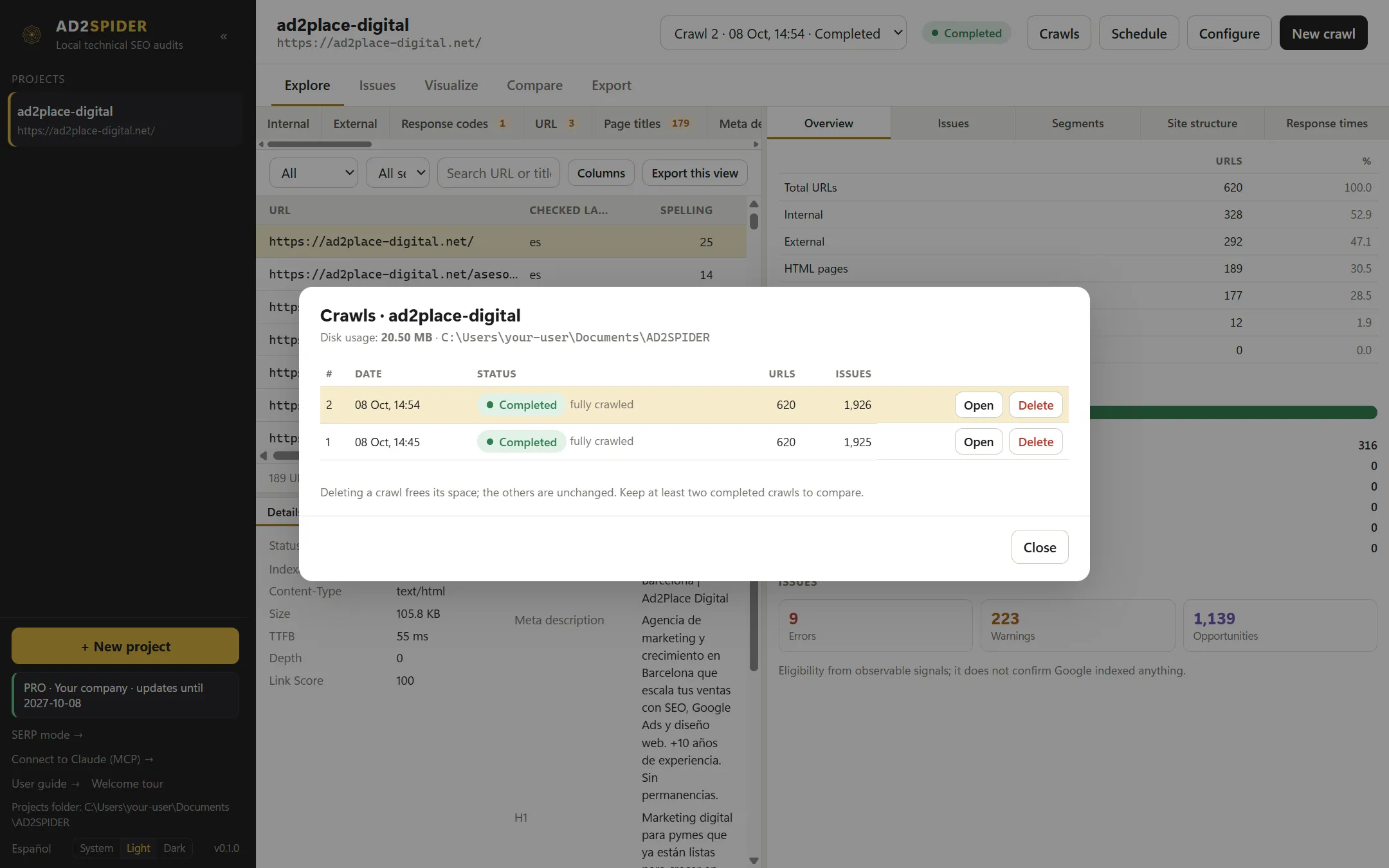
- At the top, the disk usage of the project and its folder.
- For each crawl: number, date, status with the reason it ended (everything crawled, URL limit, time limit, low disk space, canceled by you, error), URLs and issues.
- Open selects it; Delete removes it with all its data and frees up its space (it asks for confirmation and can’t be undone). You can’t delete the crawl that is running or the only one left, because it holds the project’s configuration.
To compare, keep at least two completed crawls.
Scheduled crawls
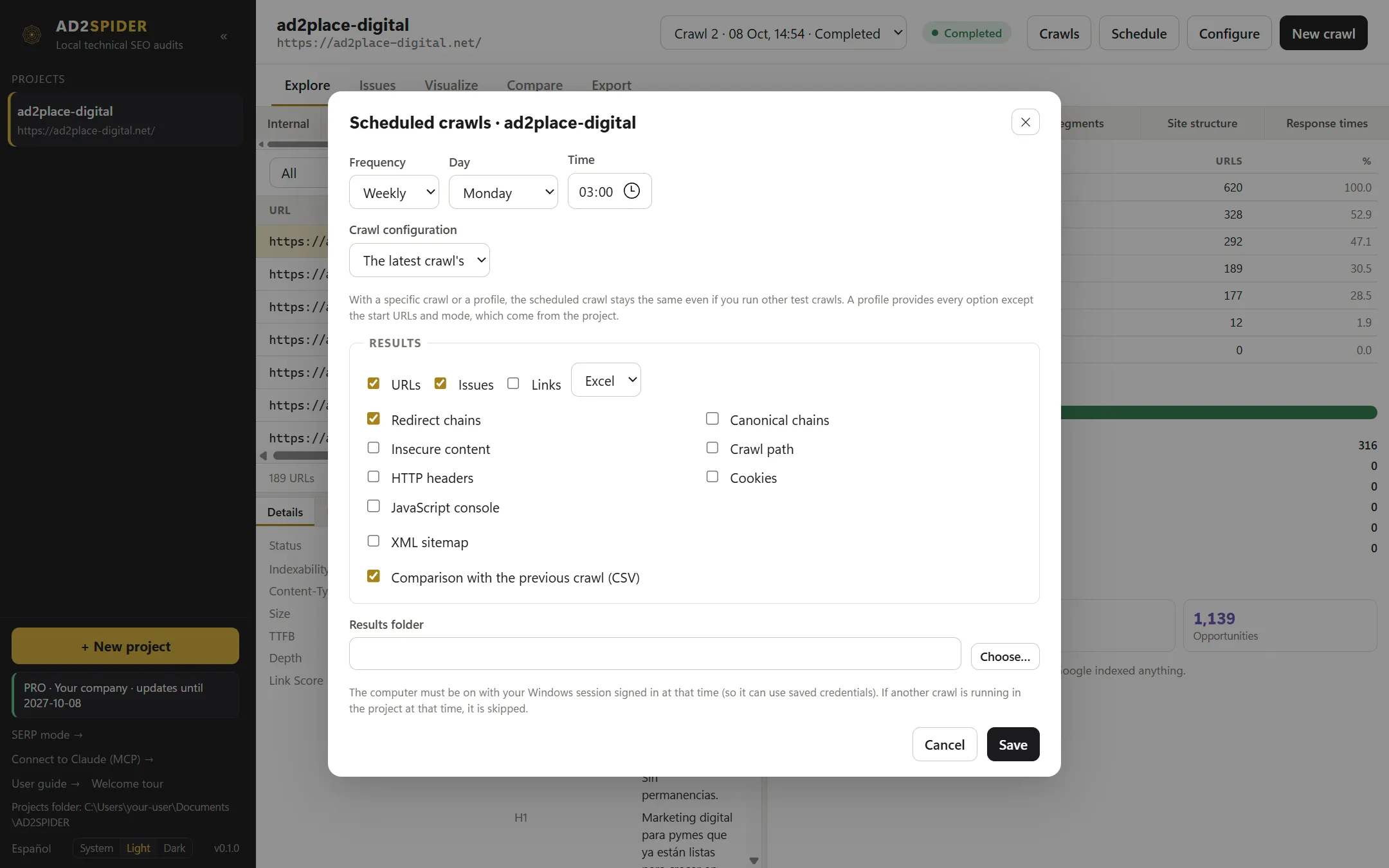
Schedule repeats the crawl automatically and saves the results in a dated folder. It uses the system’s scheduled tasks (Task Scheduler on Windows, launchd on a Mac), so it works even when the app is closed.
| Field | Options |
|---|---|
| Frequency | Every day, every week (and which day) or every month (day 1 to 28). |
| Time | 03:00 by default. |
| Crawl configuration | The one from the last crawl, the one from a specific crawl or a saved profile (.json). A profile provides everything except the start URLs and the mode. |
| Results | Tables (URLs, Issues, Links) in Excel or CSV, the reports you choose, an XML sitemap and the comparison with the previous crawl in CSV. |
| Client report | The PDF or HTML report with your brand (the progress report works as a monthly report), with an AI-written summary and action plan if you like. |
| Results folder | Where a project-YYYY-MM-DD_HHMMZ subfolder is created on each run. |
The list shows when each schedule runs and the result of its last run (successful, with an error or skipped). Run now launches it immediately; Edit and ✕ change it or delete it.
Requirements: the computer must be on with your session signed in. On a Mac, if it was asleep at that time, the crawl runs when it wakes up. If a crawl is already running in the project at that time, the run is skipped and logged.