
What AD2SPIDER is
AD2SPIDER is a desktop technical SEO auditor. It goes through a website the way Google does, page by page and link by link, and tells you what keeps it from being crawled, indexed or shown properly in search results: 404 errors, redirect chains, duplicate titles, unlinked pages, thin content, conflicting canonicals, broken structured data, performance and much more.
Three ideas define it:
- It runs on your computer. The crawl starts from your machine and the results are saved to your disk. There is no cloud in between and no monthly URL caps: the only limit is your computer.
- It explains every issue. Each of its 200+ checks tells you why it matters, how to fix it and the source it relies on (a technical standard, Google’s documentation or a configurable best practice).
- Perpetual license. You pay once and the version you buy is yours forever. The first year includes updates.
What you can do with it
- Technical audits of your own sites or your clients’ sites, with issues sorted by priority.
- Monitoring: crawl again and compare to see what has been fixed, what has gotten worse and which URLs have appeared or disappeared.
- Migrations: check a list of old URLs, follow their redirects and compare the staging site with the live one.
- Content: duplicates, thin content, readability, spelling, cannibalization by meaning and AI reports.
- Performance: PageSpeed Insights and real Chrome user data (Core Web Vitals) for every page.
- Exports to Excel, CSV and JSON, cross-reference reports and XML sitemap generation.
- Automation: scheduled crawls and a command line to fit it into your workflows.
Requirements
| System | 64-bit Windows 10 or 11, or macOS 11 or later (Apple silicon or Intel Mac). A Linux version is on the roadmap. |
| Built-in browser | On Windows, WebView2, which ships with Windows 11 and with up-to-date versions of Windows 10: it displays the app and, if you turn it on, renders JavaScript. On a Mac, the app is displayed with the system browser and, to render JavaScript, it downloads its own Chrome once (Chrome for Testing, about 165 MB) from Settings → Rendering. |
| Memory | 4 GB is enough for medium-sized sites; a 100,000-page crawl uses about 40 MB of engine memory. JavaScript rendering needs more (about 100–150 MB per page open at the same time). |
| Disk | Each crawl takes up little space (a few KB per URL). Optional modules take up extra space: spelling about 550 MB and semantic analysis about 490 MB. |
| Connection | Your computer’s own. Integrations (PageSpeed, AI) also need access to their services. |
Installation
- Download the installer for your system from ad2spider.com.
- On Windows, open it and follow the steps: it installs for your user only, without asking for administrator rights. Then open AD2SPIDER from the Start menu.
- On a Mac, open the
.dmgand drag AD2SPIDER to the Applications folder. Then open it from Applications or Launchpad. It is signed by INVERSIONES AZTECA MATARO S.L. and notarized by Apple.
The first time, a welcome tour opens and highlights the main areas of the window. You can replay it whenever you want from Welcome tour, at the bottom of the sidebar.
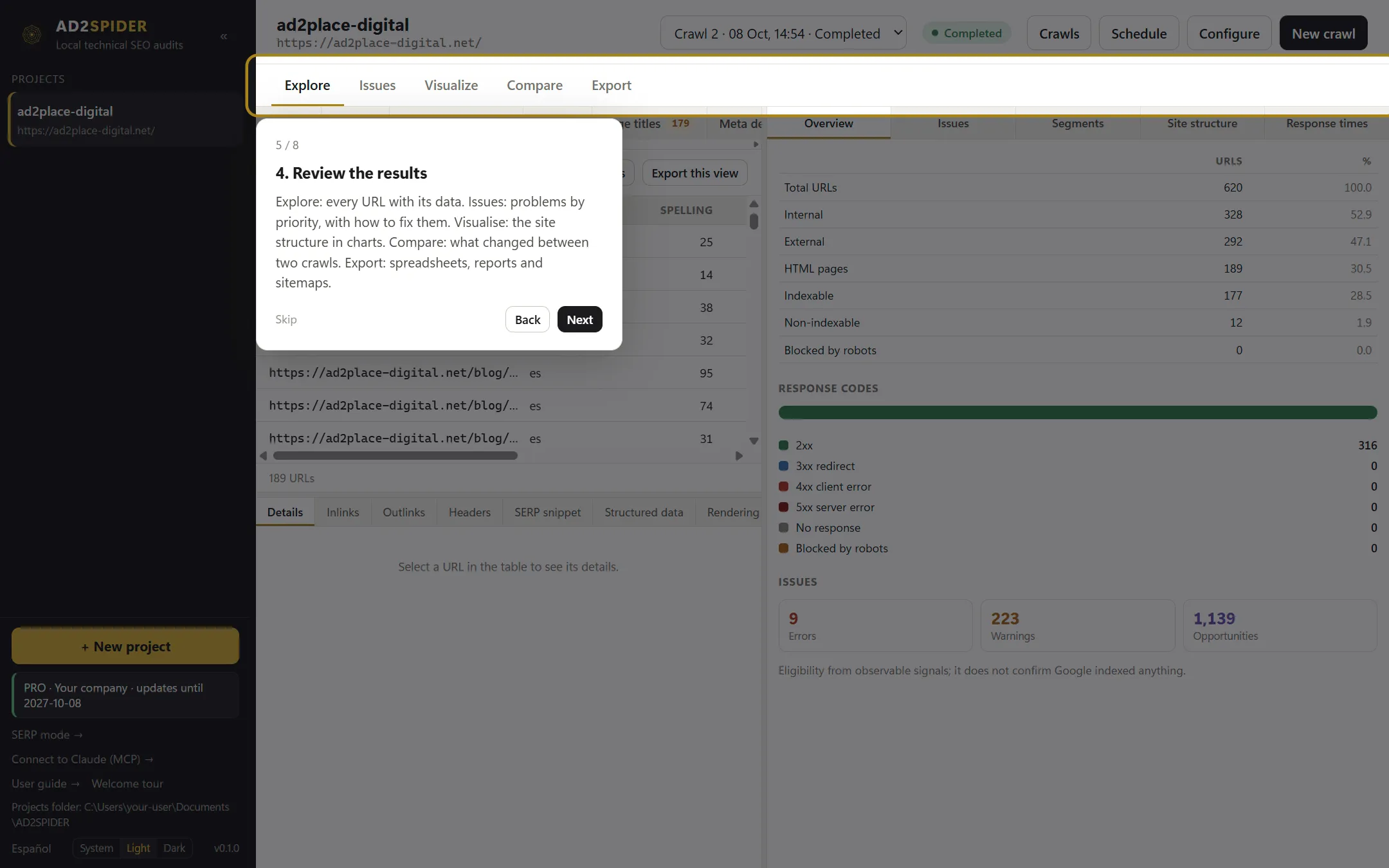
Projects are saved in Documents\AD2SPIDER (on a Mac, Documents/AD2SPIDER). Each project is a folder: you can copy it to another computer or back it up like any other document.
Free trial and license
Without a license, AD2SPIDER runs in trial mode for 14 days, with every feature and no URL limit. When the trial ends it keeps working for free, forever, with a maximum of 600 URLs per crawl, and your crawls stay open and exportable.
When you buy a license, you paste it into the app and it is activated offline. Everything about licenses and updates is in License and updates.
How to read this guide
- If it’s your first time, follow Getting started: in ten minutes you’ll have your first audit.
- To understand a specific option, click the “?” next to it in the app: it explains what the option does and brings you to its section of this guide.
- The screenshots come from the app itself crawling a demo website. Button names appear in bold, exactly as you’ll see them on screen.