
Integrations add analyses that go beyond the technical crawl. You turn them all on in the configuration, and they run when the crawl ends, during the Auditing… phase, each with its own progress counter in the header. If one fails (for example, because an API quota runs out), the crawl still completes.
Warnings: what couldn’t be measured
So that an empty column doesn’t look like “no issues”, AD2SPIDER warns you about everything an integration couldn’t measure and why: the key is missing, the key isn’t valid, the quota or credit ran out, the module isn’t installed, the page limit in the configuration…
- When the crawl ends, a notice sums up each case, for example “PageSpeed: 120 of 500 without results (quota or credit used up)”.
- In the Summary panel of the explorer, the Crawl warnings block keeps them in view.
- On each affected page, the PageSpeed and semantic columns show not measured; hover over it to see the reason.
- When you export that crawl, the warning comes with the export. Check it before sending a report to a client.
| Integration | Where it runs | Cost | What is sent out |
|---|---|---|---|
| Semantic analysis | On your computer | None | Nothing |
| Spelling and grammar | On your computer | None | Nothing |
| PageSpeed Insights | Google’s servers | Free (25,000 queries per day) | Only the URL of each page |
| AI (prompts per URL) | The provider you choose, or Ollama on your computer | Whatever your provider account charges | The page data you specify |
PageSpeed Insights and Core Web Vitals
Measures each page with Lighthouse on Google’s servers (lab data) and adds real-user Chrome data from the last 28 days (Chrome UX Report), which is what Google uses to assess page experience.
Create the API key
▶ Step-by-step video: how to get a Google API key (lesson 20 of the course, 2 minutes).
- Go to Google Cloud Console with your Google account and create a project (or use one you already have).
- In APIs & Services › Library, enable PageSpeed Insights API and Chrome UX Report API.
- In APIs & Services › Credentials, click Create credentials › API key, give it a name and, under Select API restrictions, tick those two APIs (for security, the key won’t work for anything else).
- In AD2SPIDER, go to Configure › PageSpeed Insights, paste the key and click Save and Test. The test measures example.com and tells you whether it works.
The key is free and allows 25,000 queries per day. It’s stored encrypted on your computer and works for every project.
Configure and read the results
In Configure › PageSpeed Insights, choose mobile, desktop or both (each one counts as a measurement) and how many pages to measure, from shallowest to deepest. Each measurement takes 10 to 60 seconds, so 100 pages on mobile take about 10–15 minutes.
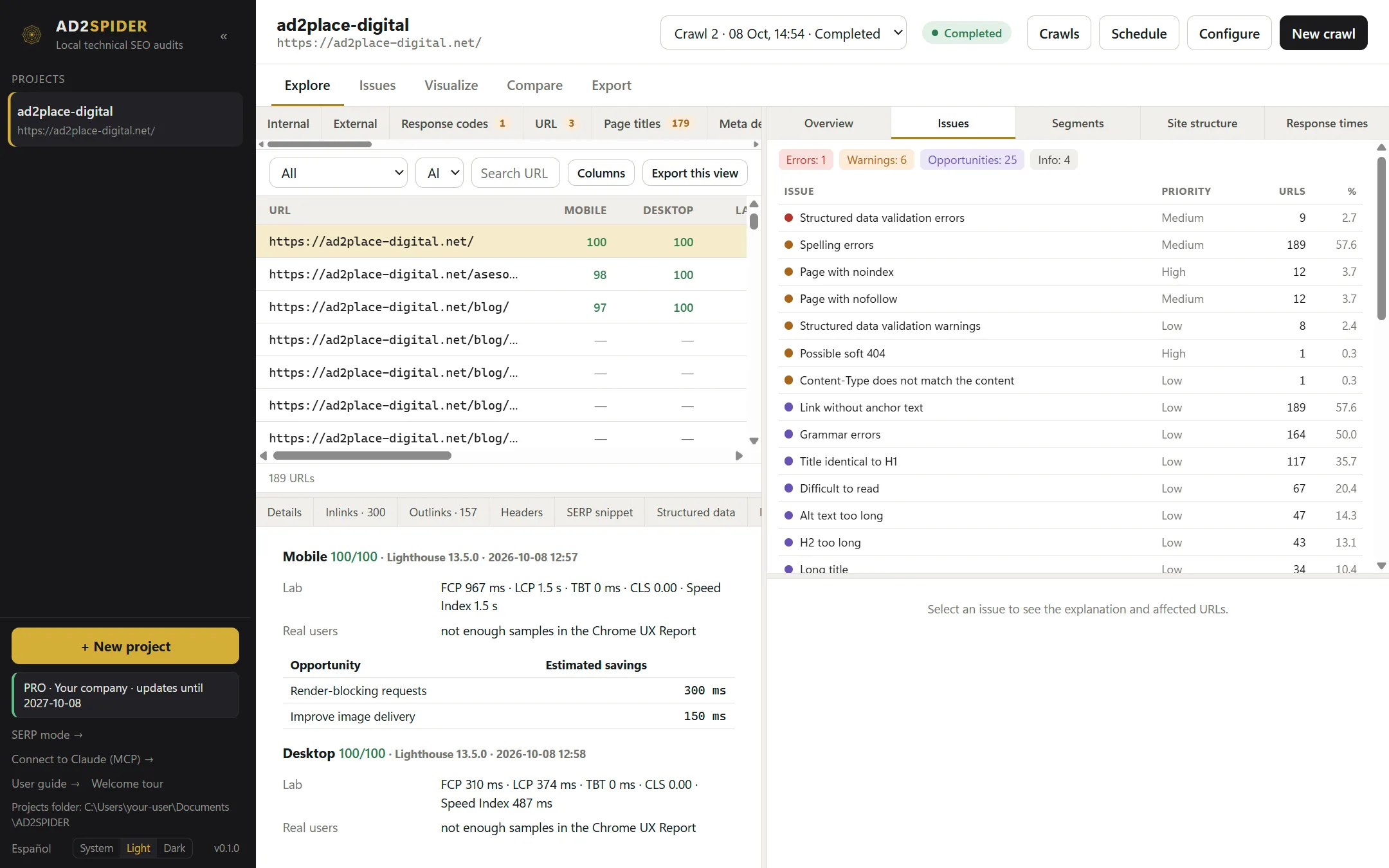
- The explorer’s PageSpeed tab shows the mobile and desktop scores, lab LCP, TBT and CLS, and real-user LCP, INP and CLS. The colors follow Google’s thresholds: green (good), amber (needs improvement) and red (poor). An o means the real-user data is for the whole domain, because that URL doesn’t have enough visits.
- The URL details, under PageSpeed, add FCP and Speed Index and the Lighthouse Opportunities with their estimated savings: render-blocking resources, unused CSS and JavaScript, images that can be improved, compression, caching, fonts, server response time and redirects.
- Issues lists pages with low scores, poor metrics and failed real-user Core Web Vitals.
- A cell showing error means Google couldn’t load the page (the details explain why). One showing not measured means the measurement wasn’t made: for example, because the quota ran out (see warnings).
Lab metrics vary from one measurement to the next; real-user data (CrUX) is what counts for Google, but it only exists for URLs with enough Chrome traffic.
Semantic analysis
Compares the meaning of your pages, not their exact words. It uses a multilingual AI model that runs on your computer: no key needed, no cost, and the content never leaves your machine.
Install and turn on
In Configure › Semantic analysis, click Download and install (about 490 MB, only once) and turn on Analyze content with embeddings when the crawl ends. It processes about 6 pages per second.
What it finds

- Similar pages (possible cannibalization): two or more pages that talk about the same thing in different words and compete with each other in Google. They appear in Issues when their similarity exceeds the threshold (60% by default). Decide whether to merge them, differentiate them or indicate which one is the main page.
- Low-relevance pages: pages that drift far from the topic of the rest of the site in their language. They may be out-of-place pages or content that doesn’t fit the website.
- Suggested internal links: closely related pages that don’t link to each other yet (from 45% similarity). Linking them helps search engines understand the relationship and distributes authority.
The Semantic tab shows, for each page, the most similar page and its similarity, how many pages are similar to it and its Relevance (from 0 to 100 compared with the rest of the site). The URL details list the suggested links: click one to open it.
Before comparing, anything repeated on every page (menu, footer, legal notices) is discarded, and each language is compared separately so a page and its translation don’t show up as duplicates. Page text is only kept until the vectors are calculated; after that it’s deleted.
Similarity goes from 0% (nothing in common) to 100%. A language needs at least 5 pages to be compared: with fewer, those pages show as not measured and the crawl warns you. Relevance needs at least 10. Pages beyond the limit in the configuration (10,000 by default, shallowest first) also show as not measured.
AI: prompts per URL
Sends a request (prompt) for each page to a language model and saves the answer as a column. It’s useful for tasks a rule can’t do: suggesting a better title or meta description, classifying search intent, summarizing the content, detecting the main keyword or checking whether the head texts describe the page well.
Providers
| Provider | Key | Cost | Where to create the key |
|---|---|---|---|
| OpenAI (ChatGPT) | Yes | Pay per use, on your OpenAI account | platform.openai.com/api-keys |
| Anthropic (Claude) | Yes | Pay per use, on your Anthropic account | platform.claude.com/settings/keys |
| Google Gemini | Yes | Free with limits, or pay per use | aistudio.google.com/apikey |
| Perplexity | Yes | Pay per use, on your Perplexity account | perplexity.ai/account/api/keys |
| Ollama (local) | No | Free: runs on your computer | ollama.com |
▶ Step-by-step videos: how to get a Claude API key (lesson 21) and how to get a ChatGPT API key (lesson 22).
The provider bills each query directly to your account; AD2SPIDER adds nothing on top. With a small model, 100 pages cost a few cents.
Configure

- In Configure › AI (prompts per URL), paste the provider’s key and click Save and Test. The test requests the list of models in your account, so it costs nothing (Perplexity has no such query, so it makes a minimal request instead). For Ollama, install it, download a model (
ollama pull llama3.2) and click Check. - Turn on Send the prompts to the pages when the crawl ends and adjust Pages per prompt (100) and Text characters per page (6,000).
- Add prompts with Add or with Add from template…. There are six templates: suggested title, suggested meta description, search intent, main keyword, summary, and title, meta and H1 review.
- For each prompt, choose the provider, the Model (type one or click ↻ to load the ones in your account), What is sent and the maximum answer length in tokens.
What is sent
- Metadata only: the URL, the title, the meta description, the H1s and the H2s. It’s the cheapest option and is enough to classify search intent.
- Content: all of the above plus the text of the content area, trimmed to the number of characters you set. Needed to suggest texts or summarize.
The request goes first and the page data comes after it, delimited, with the instruction to treat it as data. That way, a page containing instructions aimed at an AI can’t change anything beyond its own answer. Page text is only kept during the crawl and is deleted when the phase ends.
Results
- The explorer’s AI tab has one column per prompt and a With answer filter for each one.
- The URL details, under AI, show the full answer with the model and the tokens used.
- Export this view includes the answers.
If the key isn’t valid, the balance runs out or the model doesn’t exist, that prompt stops and the rest continue; the remaining pages for that prompt are left without an answer, and the crawl ends with a warning naming the prompt and the reason. Fix the key or the model and start a new crawl. If a single page fails (for example, because the model refuses to answer), its cell shows Error with the reason.
Spelling and grammar
Checks the text of the content area with LanguageTool, which you install once (Download and install in Configure › Spelling & grammar, about 290 MB) and which works offline.

- Languages: Spanish, Catalan, Galician, English (US and UK), French, German, Italian, Portuguese (Portugal and Brazil) and Dutch. In automatic mode, each page’s language is used.
- The Spelling tab shows, for each page, the language checked and the number of spelling and grammar mistakes; the details list each mistake with its context and the suggestions.
- Add brands and proper names that show up as mistakes to Ignored words.
If a British English website flags words such as “color” or “aluminium”, it’s being checked as US English: choose English (UK) as the language.