
Explore is where you’ll spend most of your time. It has four areas: the tabs per element with their URL table (top left), the details of the selected URL (bottom), the overview side panel (right) and the table toolbar. Drag the borders between areas to resize them, and the app remembers how you left them.

Tabs per element
Each tab focuses on one aspect of the website, with its own columns and filters. The number next to the name is the total of URLs affected by the issues in that tab.
| Tab | What it checks |
|---|---|
| Internal / External | All the URLs on the site / linked outside it, by content type (HTML, images, CSS, JavaScript, PDF, fonts, audio and video, XML…). Internal lets you filter indexable and non-indexable URLs. |
| Response codes | 2xx, 3xx, 4xx, 5xx, no response and blocked by robots.txt; redirect chains or loops. |
| URL | Length, uppercase, underscores, spaces, non-ASCII characters, parameters, repetitive paths… |
| Page titles, Meta description, H1, H2 | Missing, empty, duplicate, multiple, too long or too short (in characters and in pixels). |
| Content | Words, text-to-code ratio, readability, language, exact duplicates and near duplicates, thin content, soft 404, lorem ipsum. |
| Semantic | Pages similar in meaning, relevance and suggested links (semantic analysis). |
| AI | One column per prompt (AI prompts). |
| PageSpeed | Score, lab metrics and real-user metrics (PageSpeed). |
| Spelling | Spelling and grammar mistakes per page (spelling). |
| Images | Broken, missing alt text, too heavy, missing dimensions or displayed at a different size. |
| Title, pages, words, author, dates and links of internal PDFs. | |
| Canonicals | Missing, conflicting, relative, pointing to non-indexable pages or chained. |
| Pagination | rel next/prev sequences that are broken, loop or point to non-indexable pages. |
| Directives | Meta robots and X-Robots-Tag: filter by index, noindex, nofollow, noarchive, nosnippet… |
| Hreflang | Invalid codes, missing self-reference, missing return link, missing x-default, non-indexable targets. |
| Links | Broken, redirected, nofollow, empty or non-descriptive anchors, deep pages, orphan pages or pages without outgoing links. |
| Structured data | JSON-LD, Microdata and RDFa with their schema.org and Google rich result errors. |
| JavaScript | With rendering: console errors, blocked resources and changes between the original and the rendered HTML. |
| Accessibility | With rendering and the audit turned on: WCAG A, AA and AAA violations. |
| Security | Mixed content, insecure forms, security headers, insecure target=_blank links. |
| Validation | HTML structure (head and body), page and resource size, carbon footprint. |
| Sitemaps | URLs that are in or missing from the sitemap, invalid or oversized sitemaps. |
| Custom | Your searches, extractions and scripts (Custom). |
The app remembers the last tab you used.
Filter, search and choose columns
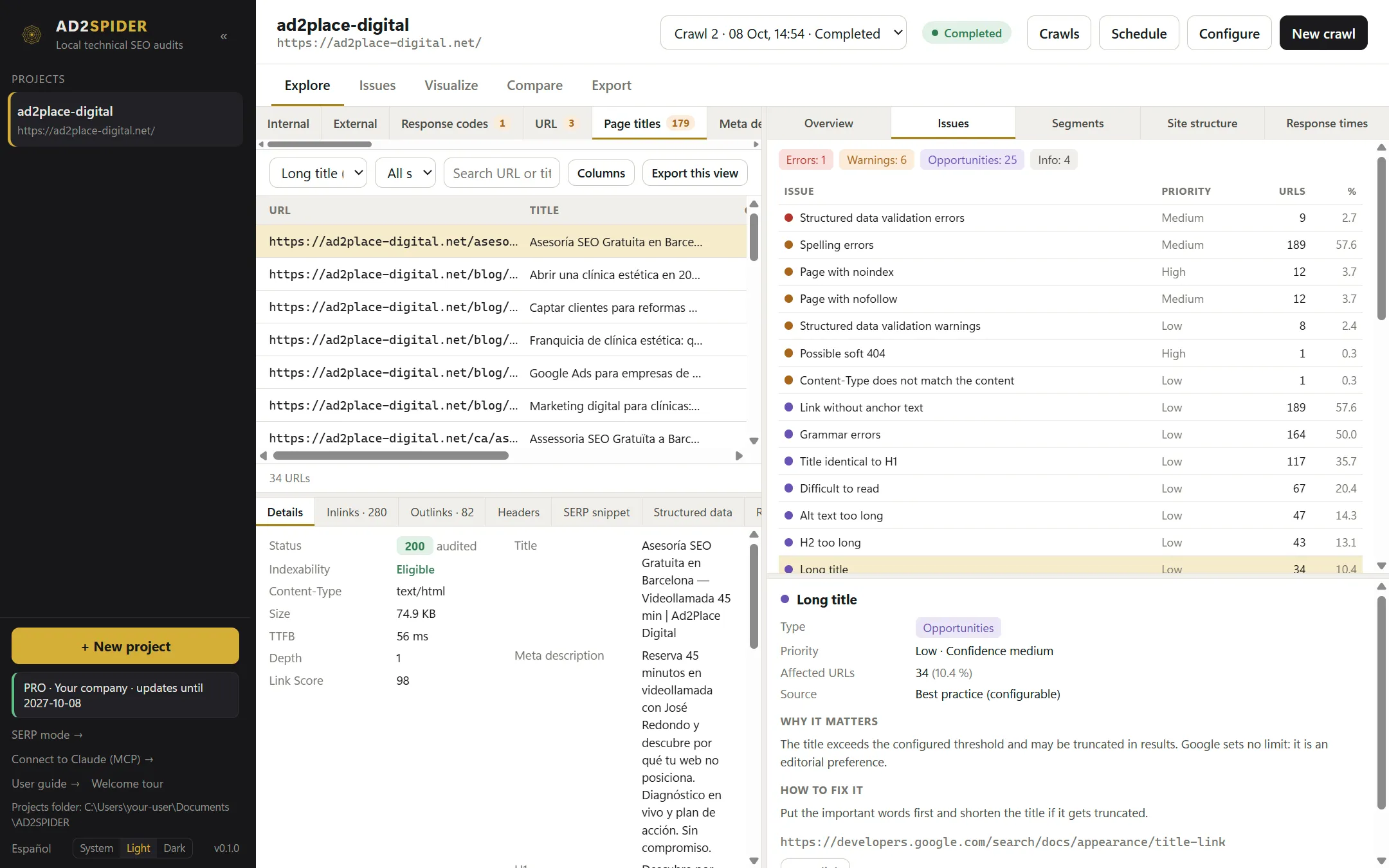
- Filter: the first drop-down has two groups. Filters are the tab’s basic cuts (all, by content type, by code, indexable…). Issues are the checks for that tab with the number of affected URLs, from errors to info: pick one to see only the URLs that fail it.
- Segment: if you have defined segments, it limits the table to one of them.
- Search URL or title…: filters as you type.
- Columns: choose which columns to show in this tab; Default columns resets them. The choice is remembered per tab.
- Export this view: saves exactly what you see (tab, filter, search and segment) to Excel.
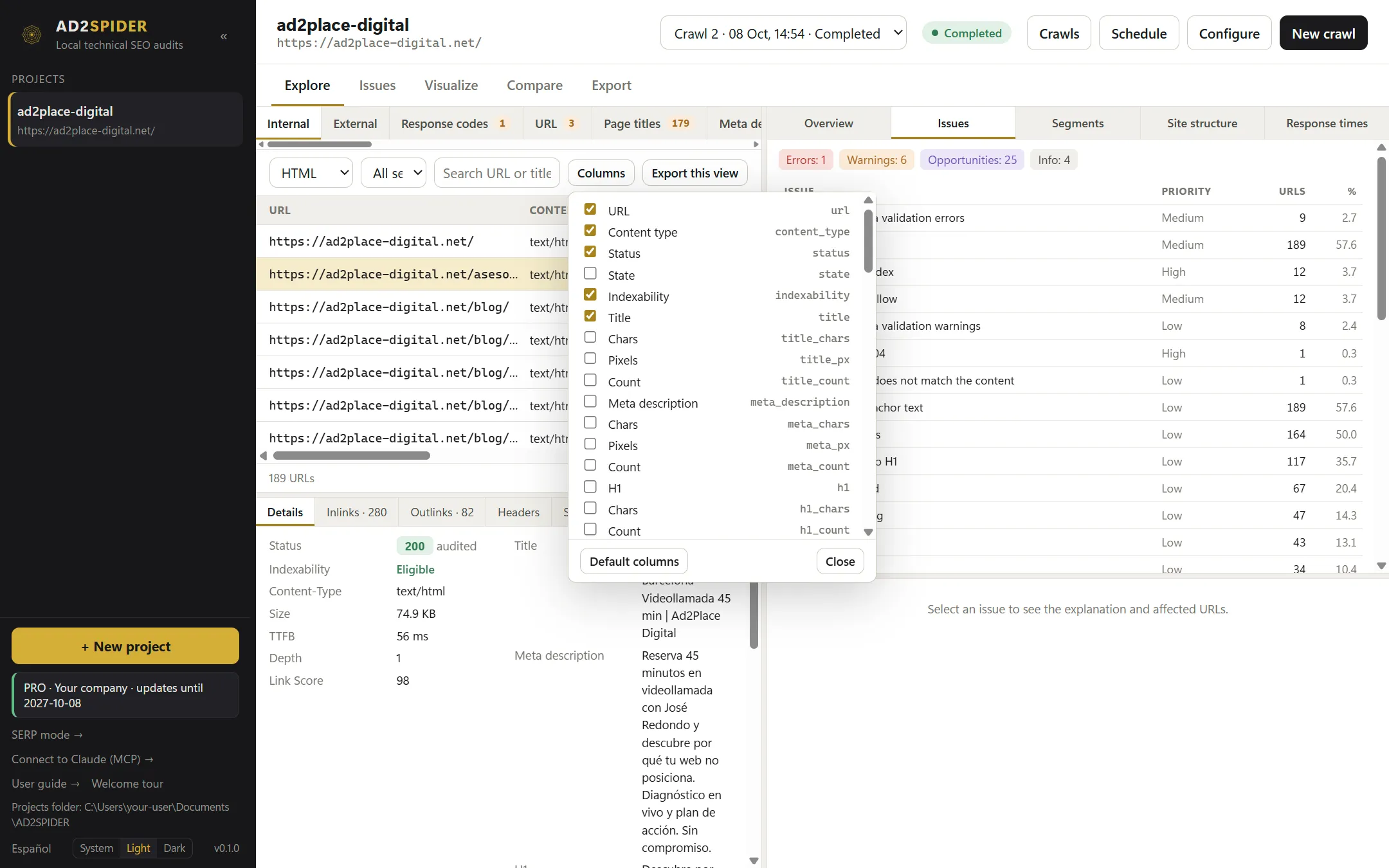
The table loads URLs in batches as you scroll; the footer shows how many there are. Click a row to see its details.
Key columns
- Indexability: Eligible if nothing prevents it from being indexed (returns 200, no noindex, self-referencing canonical, not blocked); Not eligible, with the reason in the details; Not applicable for resources that aren’t pages.
- Depth: clicks from the start URL. Inlinks: internal links it receives. Link Score: the page’s relative importance based on how the rest of the site links to it (an internal PageRank), from 1 to 100.
- Chars and Pixels for the title and meta description: the width in pixels is what decides whether Google truncates it.
- Text ratio: the proportion of text to code. CO2 (mg) and Carbon: estimated emissions per visit and their rating from A+ to F (Digital Carbon Rating).
- In PageSpeed, values are colored green, amber or red using Google’s thresholds; an o means the real-user data is for the whole domain, not for that URL.
Side panel
The right panel summarizes the crawl. You can drag its edge to make it wider.
- Overview: total URLs, internal, external, HTML pages, indexable, non-indexable and blocked by robots, with their percentage; the response code bar; and the number of errors, warnings and opportunities.
- Issues: every issue with its priority (High, Medium, Low), affected URLs and percentage. Click one to filter the table and see its card below (why it matters and how to fix it).
- Segments: URLs, indexable URLs and URLs with errors for each segment. Click one to filter the table.
- Site structure: the folder tree with the indexable and non-indexable URLs in each folder, and the Crawl depth chart (how many URLs are 0, 1, 2… clicks from the home page).
- Response times: average response time and a histogram of URLs by response time in seconds.

Segments
Segments split the website into named, colored parts (the blog, a language version, product pages…) so you can filter the table, see their numbers separately or generate a sitemap for just that part. They apply to every crawl in the project.

In Segments, click Create segments (or Edit segments):
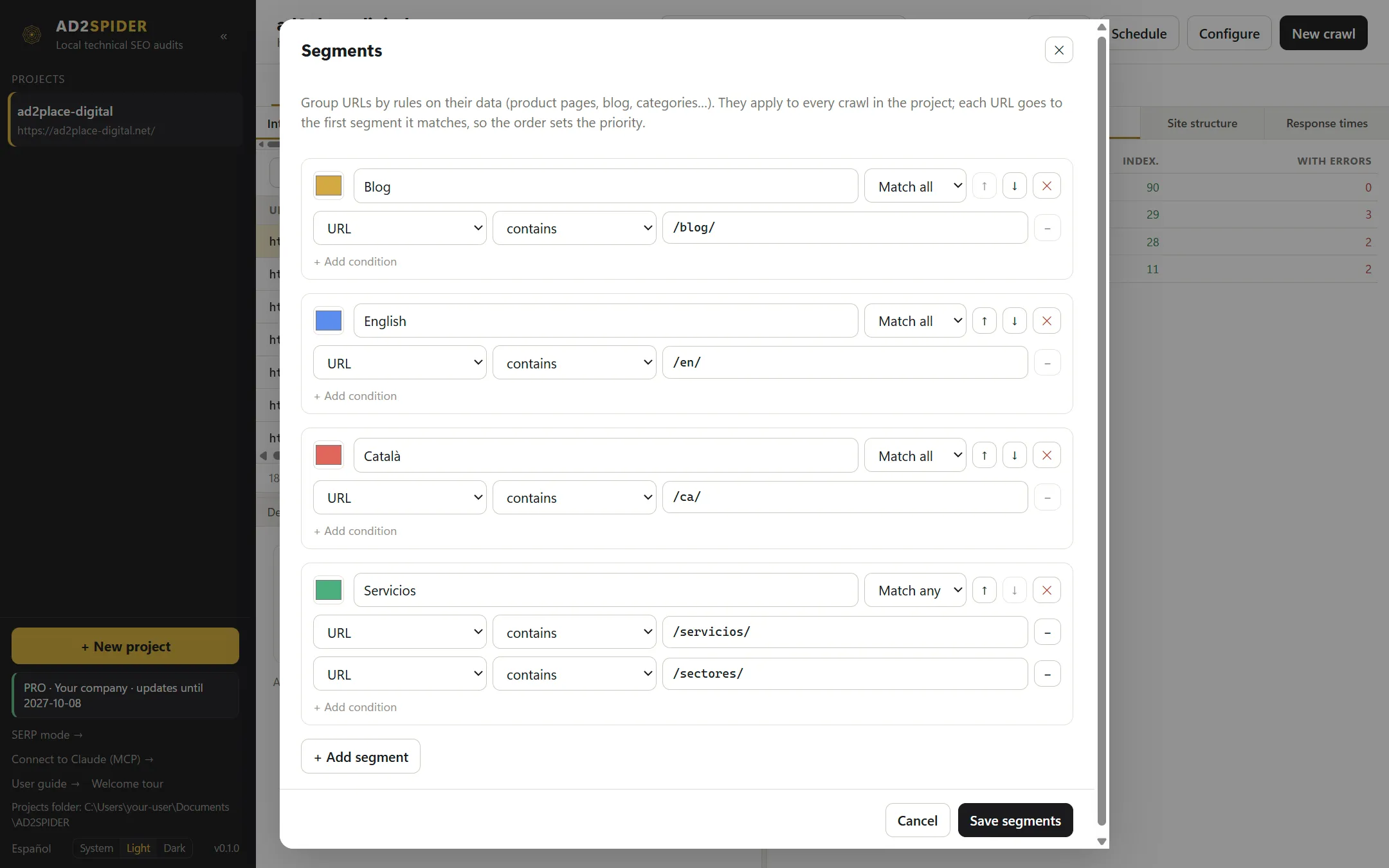
- Each segment has a color, a name and one or more Conditions. With Match all, the URL must meet all of them; with Match any, one is enough.
- Each condition compares a field (URL, title, H1, status code, content type, indexability, depth, words, inlinks or a specific issue) with a value: contains, does not contain, starts with, equals, matches regex… or greater than / less than for numeric data.
- Order matters: each URL goes into the first segment it matches. Use ↑ and ↓ to change the priority.
When you save, the table gets the Segment column and the segment filter.
URL details
When you click a row, the bottom panel shows everything about that URL. Tabs with a number show how many items they contain.
| Tab | What it shows |
|---|---|
| Details | Status code, indexability and its reasons, whether robots.txt blocks it (and with which rule and line), type, size, TTFB, depth, Link Score; and title, meta description, H1, canonical, meta robots, hreflang, language and words. |
| Inlinks / Outlinks | The links the page receives / that leave the page: URL, code, relation, anchor, whether it’s nofollow and its Position (header, navigation, content, sidebar, footer). Click a URL to open it. |
| Headers | The HTTP response headers. |
| SERP snippet | How it would look in Google, with the title and description cut off where Google would cut them. |
| Structured data | Each block with its types, its JSON and the validation errors and warnings. |
| Rendering | With JavaScript: the page screenshot, the time and requests, the comparison between the original and the rendered HTML, the console, blocked or failed resources, accessibility and the links added by JavaScript. |
| Semantic | The most similar page, how many pages are similar to it, its relevance and the suggested internal links. |
| AI | The full answer to each prompt, with the model and the tokens. |
| PageSpeed | Score, lab and real-user metrics, and the improvement opportunities with their estimated savings. |
| Spelling | Each mistake with its context and the suggestions. |
| Issues | All the URL’s issues with their evidence. |
